[on the go]
Handle the unexpected
Check a service, run a command or make a quick fix when your laptop is out of reach.
Code with AI directly from your phone. Connect to your development environment with a terminal, an AI workspace, file management and remote screen control. Start wherever you are.
iOS is not publicly available yet · Ask about iOS
Your remote AI, on your phone
Connect → Herdr → Pi → Send a message
Check a service, run a command or make a quick fix when your laptop is out of reach.
Describe what you want to build, give your agent a task, then review and refine the changes from your phone.
Send an attachment to an agent, inspect a generated document or transfer a file to your server.
Move between networks with Mosh, switch between servers and reopen saved Agent conversations.
Build with Codex, Claude Code, Gemini CLI, OpenCode or Pi from your phone. Your agents run in your own server’s development environment.
Describe a feature or a bug, send a task and follow your agent’s work in a native conversation. Keep the context as your project evolves.
Answer questions and handle supported approvals as they arrive, without navigating a tiny terminal prompt.
Add files from your phone or server, then open generated documents directly from the conversation.
Agent availability and supported interactions depend on your server setup and the service account you connect.
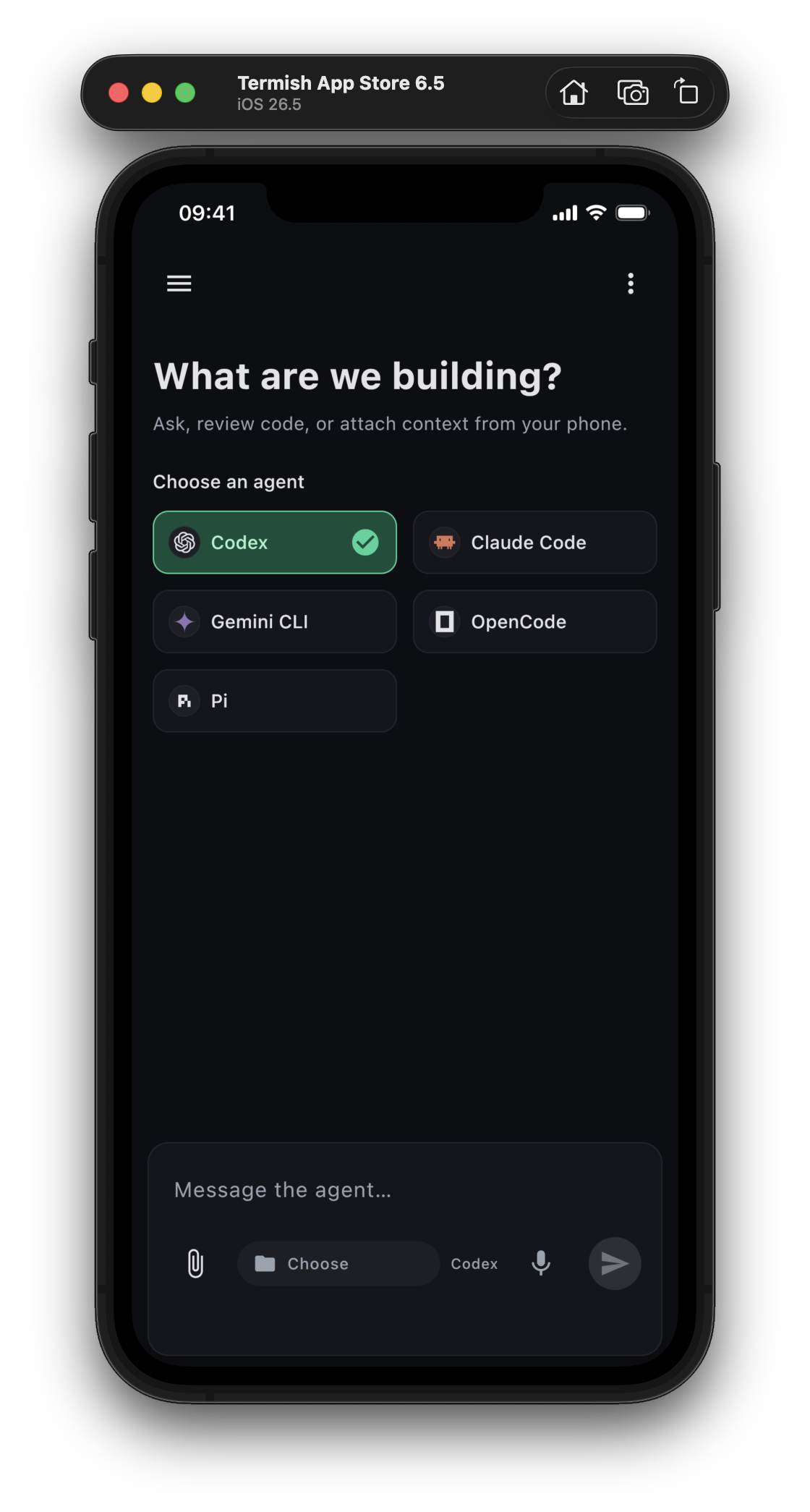
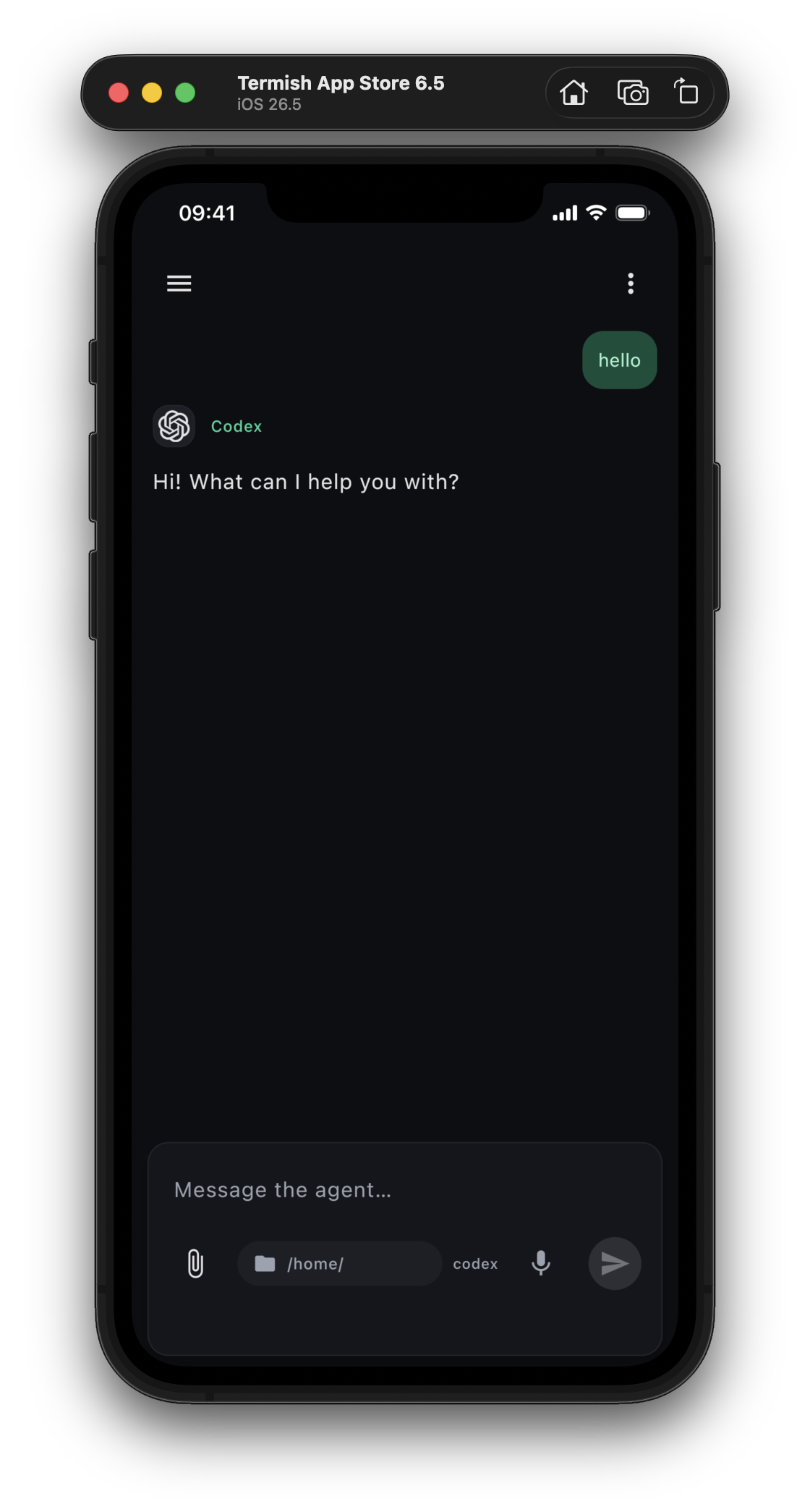
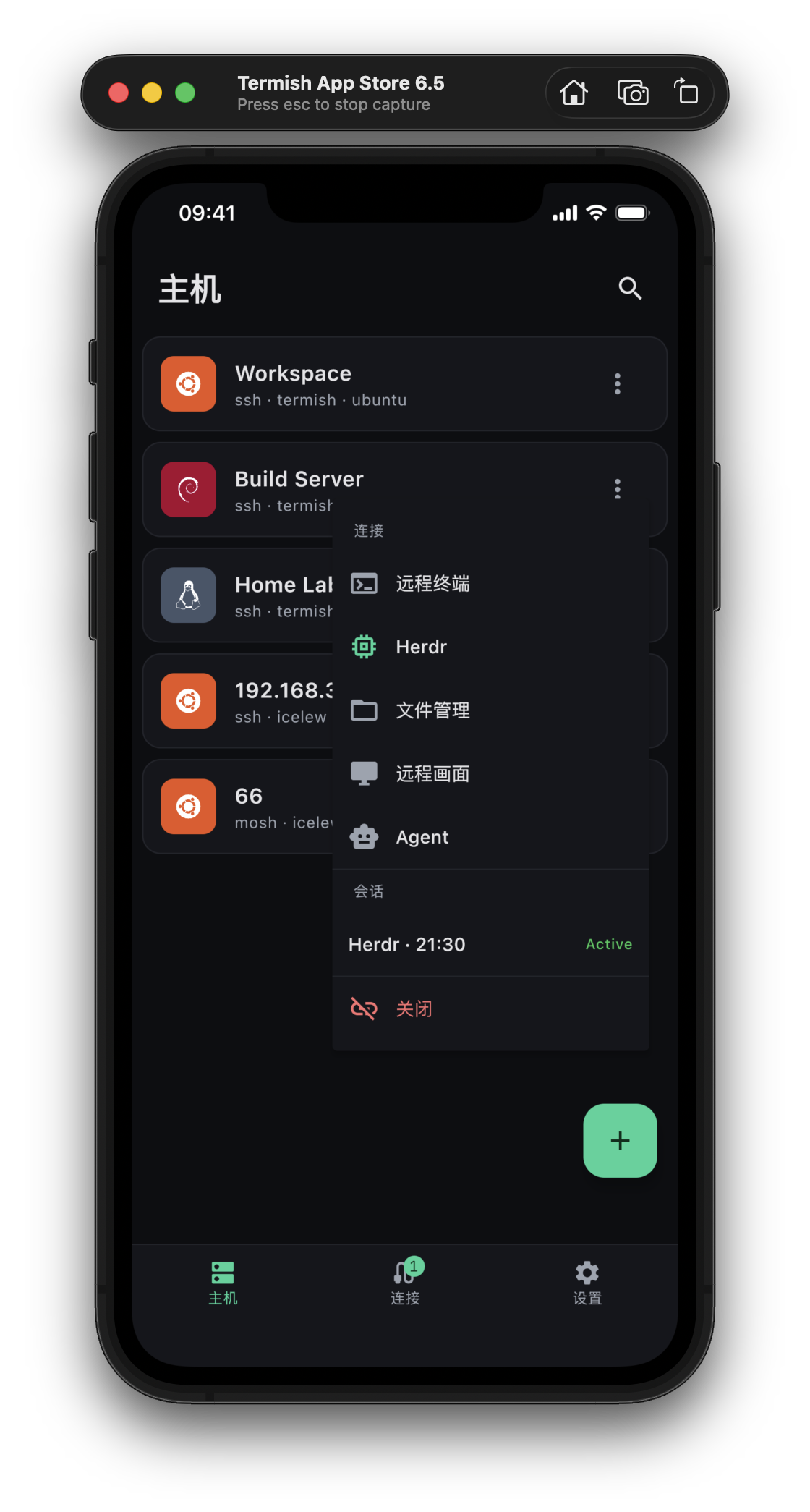
Actual iOS app screens. iOS is not publicly available yet.
Hosts, terminal tools and remote files in the iOS app. Available in English and Chinese; iOS public downloads are not open yet.
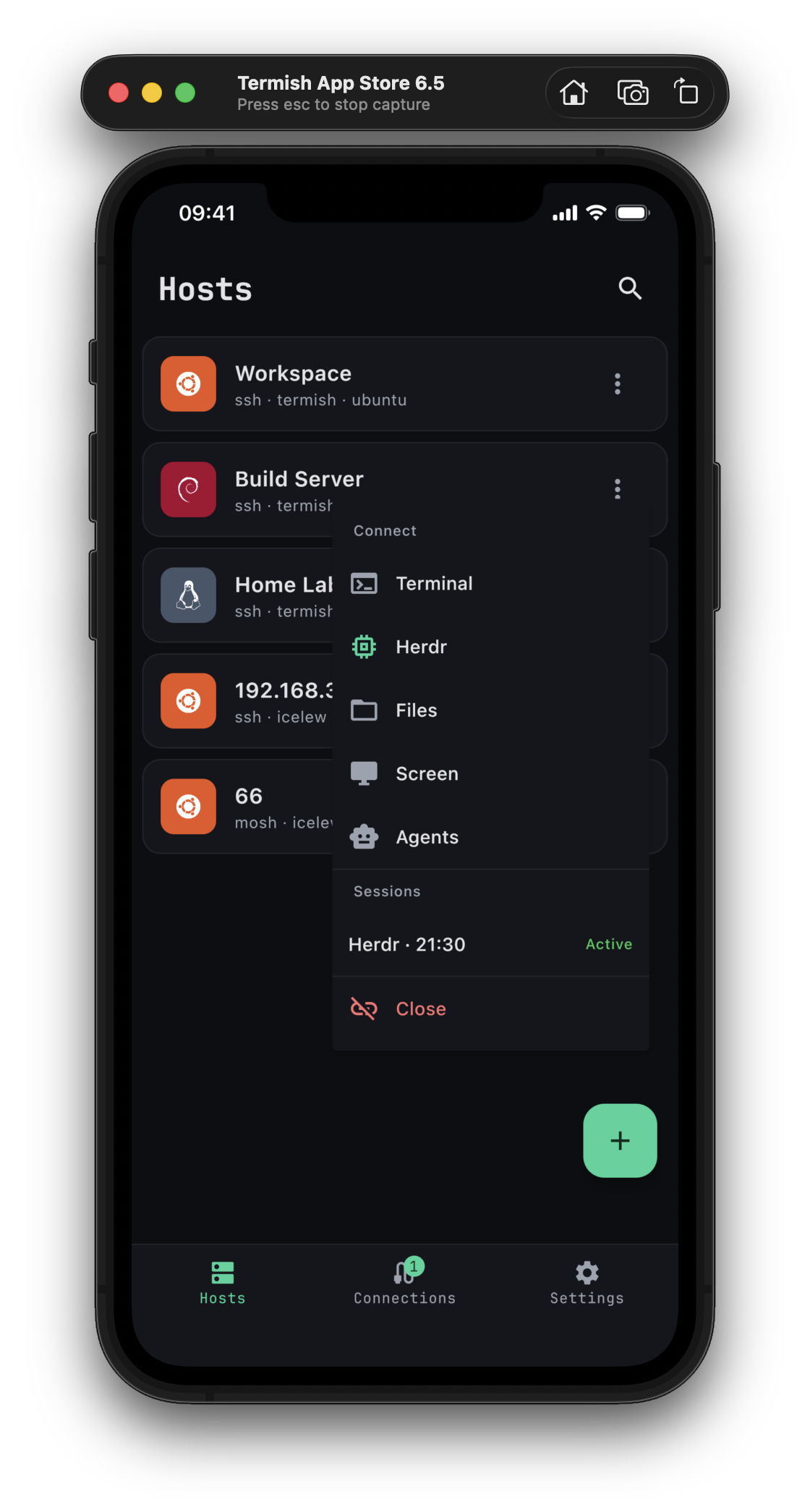
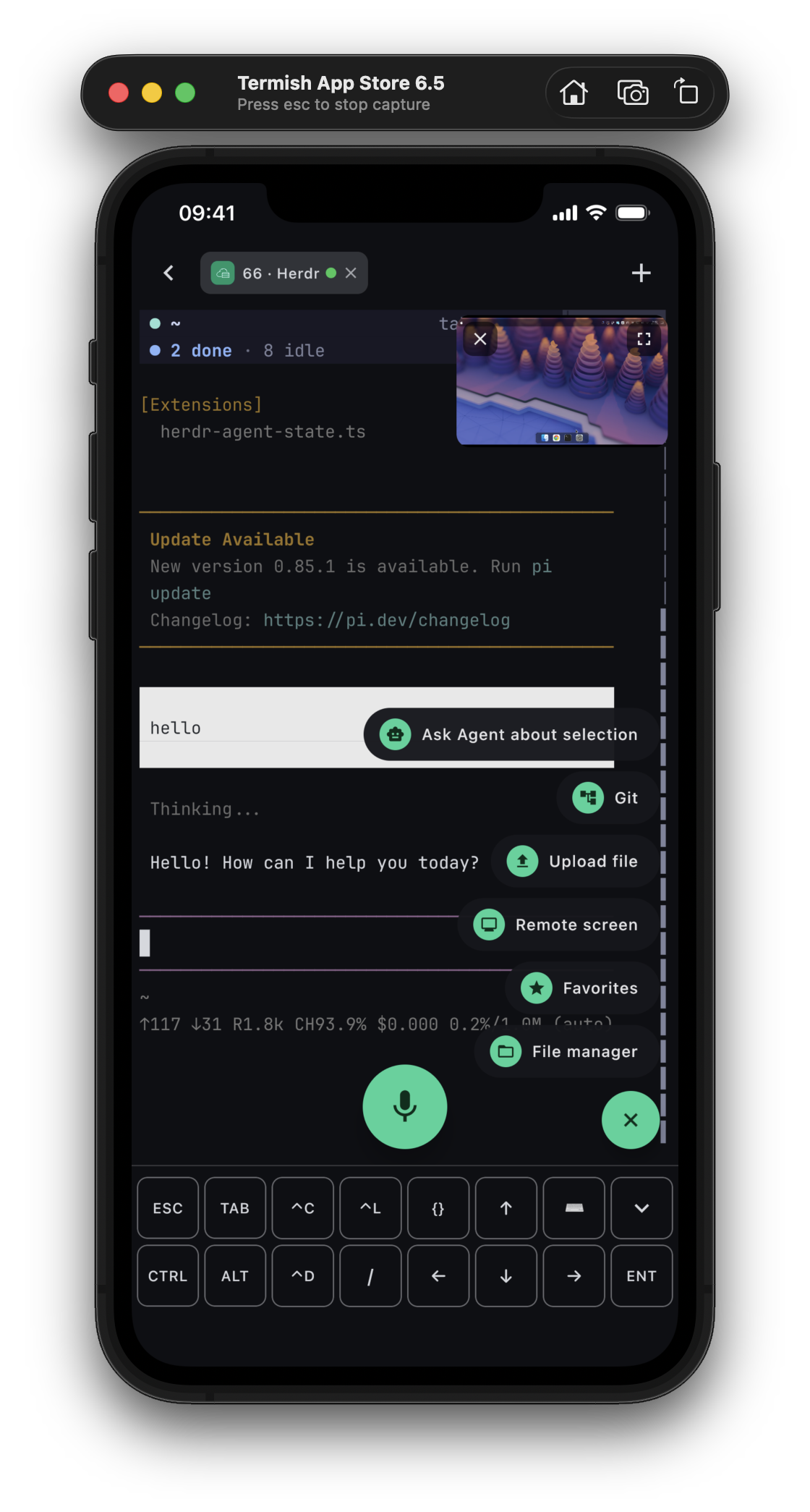
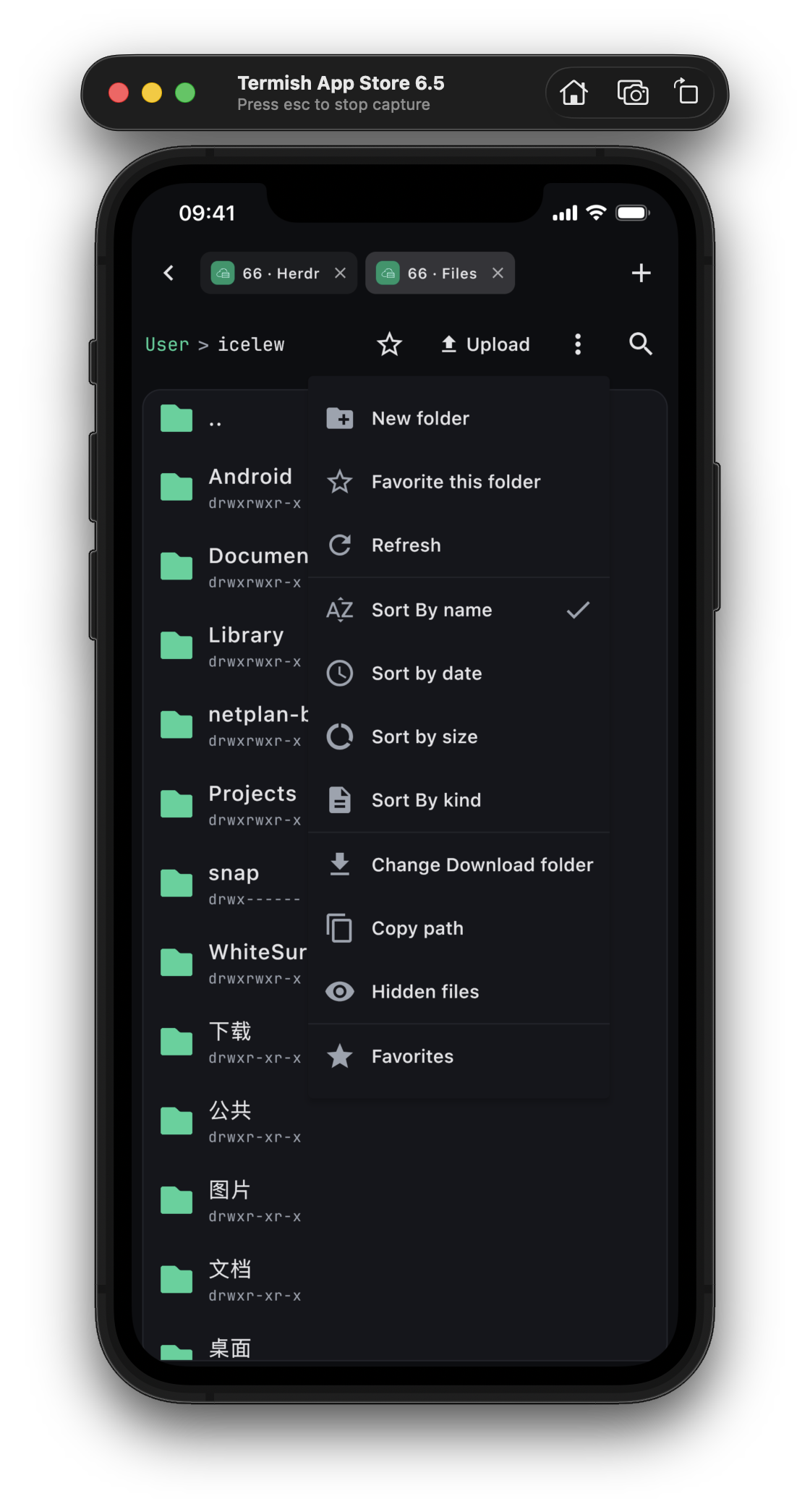
The tools you reach for every day, shaped for a smaller screen.
Connect over SSH or Mosh. Type comfortably with a dedicated keyboard, natural text input and touch controls.
Give Codex, Claude Code, Gemini CLI, OpenCode or Pi a coding task in a native conversation. Review the result and keep iterating on your project.
Browse remote folders, upload and download files, and preview text, images and Markdown without switching apps.
View your remote screen in a floating window or full screen. Use touch or a virtual mouse to interact with desktop apps alongside your terminal or AI workspace.
See what changed, inspect diffs and commit from the Git panel alongside your terminal session.
Hold the microphone to dictate a command or a request using your configured speech-recognition service.
Connect your development environment and start with the tools and accounts you already use.
Have an SSH-enabled server ready. Add its address, port and username, then choose a password or SSH key. Connect and verify the host fingerprint.
Start with a terminal or SFTP. For native AI chat, open Agent, choose your server, a supported agent and a working directory, then follow the setup prompts.
Connect the agent to your own AI account or configured provider. Send a small first task, review the reply and continue from your saved conversation.
Connect to your own servers and choose the external services you use.
Passwords, private keys and service credentials use your device’s protected storage.
Terminal sessions and file transfers connect to your servers without a Termish relay.
Voice recognition and AI use the providers you configure. The app has no advertising or behavior tracking.
Termish is released under the MIT license. Explore the source, build it yourself and help improve the mobile workspace you use.
Browse the Android and iOS app, terminal engine and Agent Bridge.
Report a reproducible bug or describe what would help your workflow.
Start with the setup guide, development checks and contribution workflow.
Choose your device and bring your workspace along.
Download the latest version and install it on your phone.
Checking the latest release…

APK installation: your browser may ask you to allow installs from this source. You can turn that permission off after installation.
The iOS app is not available for public download yet. Contact us for availability.
Ask about iOSNeed help using Termish? Contact us
What you need for your first connection and your first AI conversation.
Yes. The source code is available on GitHub under the MIT license, with build instructions and contribution guides. Third-party components retain their own licenses. AI and optional speech services use your own provider accounts and are not included.
Yes. Termish is a client for connecting to a server or computer you control; it does not provide a hosted server. Your device must be able to reach that machine over the network, and SSH must be enabled.
The coding agents run on your remote machine. Termish provides the mobile conversation and controls. Model requests go through the AI account or provider configured for that agent.
Native conversations support Codex, Claude Code, Gemini CLI, OpenCode and Pi. Use the agent’s supported login or provider configuration. Service availability, limits and charges follow the account you connect; an AI subscription is not included with Termish.
No. The video demonstrates one terminal workflow using Herdr and Pi. SSH, SFTP and native Agent conversations can be used independently of Herdr.
The iOS app is not publicly available yet. The recording shows the iOS app in use. Contact us about availability; the Android APK cannot be installed on an iPhone.
Terminal and file connections go directly to your server, without a Termish relay. AI and optional voice services use the providers you configure. Read the privacy policy for the details of local storage and external services.